Guide
Features
Everything the pal, the notch and the dashboard can show you, and how to use it.
The floating pal
The pal's window floats above your other windows, even full-screen editors. It has two sizes:
- The full view (380 px wide, and you can make it taller): the pals on top, then the Summary, Tools and Files tabs. With several sessions, a row of tabs names each one (“Claude · my-app”) with a dot that pulses while it works. The tabs are for active sessions: those with a pal on screen, or busy in the last 30 minutes. Older ones are on the dashboard. The view follows the most recently active session until you pick one; All shows every session together.
- Just the pal (small mode, ⤡): only the pals, side by side, one per active agent. A round bar above them names each one (“Claude”, “Codex”, or the project when one agent runs twice). Click a name to open the full view on that session.
Drag the pal to move the window. A short click plays its tap animation instead. In small mode, clicks on the empty space around the pal go through to the window underneath, on Windows and macOS (not on Linux).
The pal's speech bubble says what the agent is doing in a few words: the step of its plan (“2/4 · Detecting the system setting”) or the current chapter (“Changing files · 4 so far”). It changes only when that changes, so you have time to read it.
When pals come and go
- Each agent session gets its own pal. The first uses your chosen character, the next ones the following characters in turn.
- Small mode shows only the agents that are active: working, waiting, or busy in the last two minutes. When none are, it shows the most recent one.
- A pal with nothing new for 3 minutes dozes off (floating zs) and wakes on the next event.
- After 15 minutes of silence, or an hour if it's waiting for you, the bridge ends the session and its pal leaves. It also leaves when the agent says the session ended. A new event brings it back.
- Dismiss a session yourself with the × on its tab in the pal, or × Dismiss under its pal in the open notch. Its pal leaves everywhere at once, and comes back by itself if the agent does something new. Its history isn't touched.
The story view
The Summary tab has one card per request you gave the agent. Instead of hundreds of tool calls, each card reads as a few chapters:
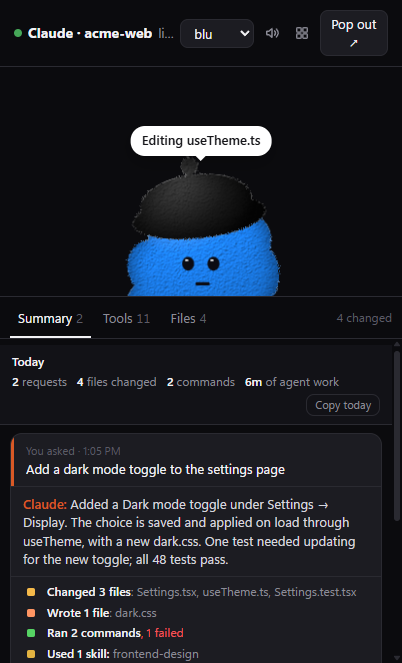
- You asked: your prompt. Click it to see all of it.
- What the agent said it did: its closing message, shortened with more and less. While it works, this line shows the current step, or “Waiting for your OK” with what it wants to do.
- The live plan, while it works: the agent's own to-do list (Claude's TodoWrite and tasks, Codex's plan, Gemini CLI's and OpenCode's to-do lists) with ticks and a progress bar, “Plan · 2/4”.
- Chapters, outcomes first. Click one to see its steps, and a step to see its command, output or diff.
- Worth a second look: flags for anything risky (below).
- The footer: “✓ Done in 42s”, “✕ Stopped with an error” or “Working · 12 steps so far”, Copy (the request as Markdown, for a PR description or commit message: what ran, what failed, what's unclear and what didn't run are listed apart, each with its command, the result it was read from and the step's ID) and All N steps.
Chapters
| Chapter | Made of | Reads like |
|---|---|---|
| Questions | The agent asking you something | Asked you a question |
| Changes | Edits, new files and deletes in the project, with lines added and removed | Changed 5 files (1 new) · app.js, style.css, dark.css +2 · +42 −7 |
| Tests | npm test, pytest, go test, cargo test and other test runners, when the command runs one (not when it only mentions one). Passed or failed comes from the test output (fail 0, 5 passed) when it says, else the exit code | Tests failed twice, then passed |
| Build and checks | Builds, type checks and linters (tsc, eslint, npm run build…) | Build and checks passed |
| Installs | Package installs (npm install, pip install…) | Installed packages · express, zod |
| Shipping | git commit, push, tag and merge, gh pr create, gh release create, npm publish | Committed, pushed and released v0.6.0 |
| Helpers, skills, tools | Subagents, skills and MCP tools | Used the frontend-design skill |
| Research | Web searches and fetches | Researched online |
| Looking around | Reading and searching files, and commands that only look (ls, git status, cat…) | Looked through 14 files · in src/, test/ · 3 searches |
| Commands | Any other command | Ran 3 commands · node, python |
| Scratch files | Files written outside the project (shown quietly) | Used 2 scratch files outside the project |
| Memory | Compacting the conversation | Tidied up its memory of the conversation |
These are plain rules, not AI, so they're instant, free and the same every time. The dashboard uses the same rules.
Worth a second look
A request is flagged when it:
- changed
.envor another file that usually holds secrets (.npmrc,.pypirc, SSH keys, credentials,*.pem,*.key…), or read one (shown as a note), - deleted files recursively, force-pushed, or threw away changes in git,
- dropped database tables, piped a download straight into a shell, used
sudoorchmod 777, or force-stopped programs, - ran the same command and it failed 3 times,
- changed code and ran no tests (“Not tested: changed 2 code files, and the agent ran no tests”), changed code after the tests passed (“Changed app.tsx after the tests passed: not tested since”), committed without a passing test run after the last change, or its last test run was unclear (“Tests unclear: no tests actually ran”). Docs, images and lockfiles don't count as code. This shows once the request is finished,
- published a package (shown as a note).
Was it tested?
A green result from before the latest edits isn't a check of the code as it is now. One line at the top of the Summary (and in the notch's Story) says where things stand for the session you're looking at:
- “Tests passed · 48 passed · 7:08 PM, after the last change”,
- “Tests passed at 7:08 PM · 3 files changed since” (amber),
- “No tests run by the agent · 2 code files changed” (amber),
- “Tests failed · 1 failed, 47 passed · 7:08 PM” (red),
- “Tests unclear: no tests actually ran · 7:08 PM” (amber),
- and whether the last commit was tested: “· last commit not tested”.
Only tests the agent ran count. dotpals can't see tests you run yourself in a terminal, or in CI.
Where the result comes from
Each test run's result says how dotpals knows, in the line above and in the test chapter (“npm test · 48 passed”):
- The output's own summary, when there is one: “Tests passed · 48 passed”, “Tests failed · 1 failed, 47 passed”. dotpals reads the summaries of jest, vitest, mocha,
node --testand TAP, pytest and unittest, go test, cargo test, dotnet test, Maven, Gradle, Deno, Bun, PHPUnit and RSpec (and “5 passed” / “1 failed” lines from others). A failure anywhere in the output beats a passing line, and a command that fails after its tests passed (npm test && restart) still reads as passed. - The exit code only, when the output has no summary: “Tests passed (exit code only)”. Weaker evidence, so it says so.
- Unclear, when there's no honest answer: zero tests ran or every test was skipped (“Tests unclear: no tests actually ran”, a common false green), the exit code says passed but the output shows a Traceback, a panic or
Error:lines, or the exit code says failed but the output looks fine. Unclear never counts as passed: it's flagged when the request ends, and a commit after it isn't “tested”.
Long output keeps its start and its end (“… (12480 characters cut) …”), so the summary at the bottom isn't lost.
Double-check unclear results (optional)
A dot and a line under the checker say whether it's working ("Jev is working · answered 4 min ago in 227 ms") or not, and why. dotpals checks it when it starts, when you change the setting and every 30 minutes, and Recent checks shows how many test runs the rules settled on their own, so a quiet checker is easy to tell from a broken one. Off by default. In Settings → Double-check unclear test results, a checker can look at an unclear run once and decide: “Tests passed · checked by Jev, 94% sure”. Only unclear runs are sent; clear results, and runs where no tests ran, never are.
- Local (Laya): Laya by Convai Innovations (open source, Apache-2.0), on your own computer. Free, and nothing leaves your computer. Click Set up Laya (or run
dotpals laya): dotpals installs it into its own folder (~/.dotpals/laya, a separate Python environment) and starts it, showing its progress. It needs Python 3.10 or newer; if you don't have it, the page says so and links to python.org. The first time downloads a few GB: PyTorch (about 125 MB on Windows and macOS, a few GB on Linux, where it comes with GPU libraries) and Laya's model (about 850 MB), so it can take a while. From then on dotpals starts Laya whenever the checker is on Local, stops it when you choose something else or quit, and runs it on127.0.0.1only. Stop, Start and Remove Laya (which deletes it all) are on the same page.
Already run Laya yourself? Open Advanced: use my own Laya server and enter its address:pip install "laya[serve]", thenLAYA_HOST=127.0.0.1 laya-serve(PowerShell:$env:LAYA_HOST="127.0.0.1"; laya-serve) answers onhttp://127.0.0.1:8000. - Cloud (Jev): TypeSafe's Jev, with your API key from console.typesafe.ai. Paste it on the Settings page, or set
TYPESAFE_API_KEY. It sends the test output to TypeSafe, after removing anything that looks like a password, key, email or IP address (see Privacy).
The checker answers a yes/no question, “Does the evidence show that the tests pass?”, with a probability. 0.7 or more counts as passed, 0.3 or less as failed, and anything in between stays unclear. It's shown the facts dotpals parsed, the exit status, the end of the output and the lines that look like failures. It gets 5 seconds; if it doesn't answer, or can't be reached, nothing changes except a note: “couldn't check with Jev”. The same output is never asked about twice. Test connection on the Settings page sends one tiny request (Laya's /health, or Jev's list of models) to see that it works.
The question, its thresholds, the output parsers and the redaction rules are adapted from claude-referee by Ismail Dasci (MIT).
Retries
When a step fails and the agent tries the same thing again (the same file, the same command or the same tool call, within the next 25 steps and 15 minutes), dotpals links the tries. On the Tools tab and the dashboard's Log, the failed step says fixed on try 2, still failing after 3 tries or trying again, and each retry says which try it was. Open either to see every try with its result, and click one to jump to it. The chapters say it too: “1 edit failed, fixed on the next try”. Agents don't label their retries, so this is a good guess: a later step at the same thing counts.
Today, Tools and Files
- Today, at the top of the Summary: requests, files changed, commands run and time the agent spent working. Copy today copies it all as Markdown, ready for a standup.
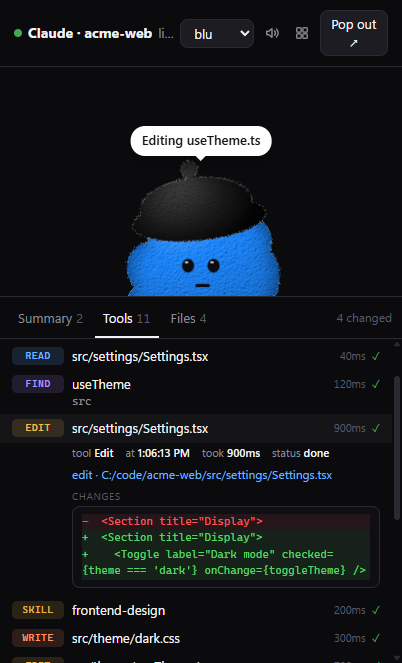
- Tools: every tool call as it happens, with a spinner and a timer while it runs, “needs OK” while it waits for you, and ✓ or ✕ when it's done. Click one for the tool, time, status, files (click to open in VS Code), the command, the diff, the input and the output. Filters above the list, each with a count:
- Key steps (the default) hides file reads, searches and plan updates, which are most of the calls and rarely what you're looking for,
- Changes: edits, new files and deletes,
- Commands,
- Problems: calls that failed or are waiting for you,
- All.
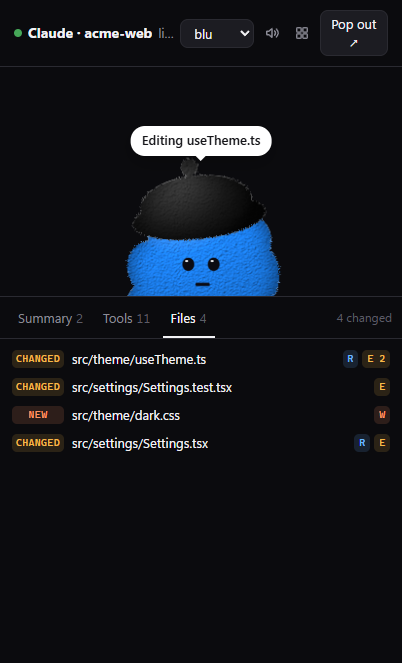
- Files: the files the agent changed come first, with the folder dimmed and the name bold, lines added and removed, and “edited 3×” when it changed a file more than once. Files it only read are folded under Show N files it only read. Click a file to open it in VS Code or see its last five diffs.
The notch
A small island that hangs from the top of your screen, so closing the pal doesn't mean losing track.
It lists agents that are working or waiting for you, plus any that finished in the last 90 seconds. Earlier sessions are on the dashboard.
Hidden, peek, bar and open
- Hidden: when nothing is running, or you've been away from the computer for 3 minutes. All that's left is a thin, invisible strip at the top edge of the screen.
- Peek: hover that strip and a small island peeks out. Rest the pointer there for a moment and it opens. Sliding along the top edge on your way to a browser tab doesn't open it, and the peek never takes a click.
- Bar: while agents work, a slim island shows a mini pal for each agent, what one of them is doing (taking turns every few seconds, with an agent that needs you always first), its plan step (“2/4”) or how many helpers are working, and a ring for your highest usage limit. Hover it for a moment (about 200 ms), or click it, to open.
- Open: the big view, 640 px wide (below).
It glows amber when an agent needs you, shows a moving light while agents work, flashes green when one is done and shakes on errors.
The open notch
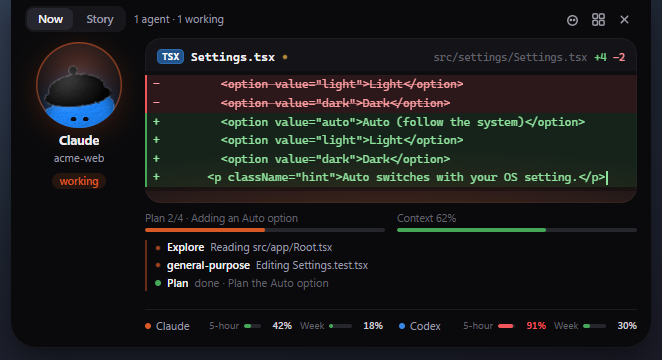
The agent in focus is a big pal on the left, with its name, project and state. On the right is one card about it. With two or more agents, their mini pals line up in a column on the right edge; click one to look at that agent. The header counts the agents (“3 agents · 1 needs you · 2 working”), shows how many alerts are waiting behind this one, and has buttons to show or hide the pal (eyes open: it's on screen; showing it brings it back in small mode, waving), open the dashboard, minimize the notch (–, below) or close it. There are two tabs, Now and Story. The notch remembers which one you like, for busy agents and for idle ones.
Now is what the agent is doing, or needs, right now:
- While it works: a live diff of the file it's editing, with the file's language, +adds −dels and the newest line typing in. When it isn't editing, a checklist of its latest steps and what's left on its plan. Below the card: its plan and context window as two small bars, its helpers, and your usage limits.
- When it needs your OK: an approval card with the exact command or diff, anything risky, a countdown, and Deny and Allow. You can also press Ctrl+Alt+N to deny or Ctrl+Alt+Y to allow (⌘⌥N and ⌘⌥Y on macOS). These keys work only while the card is showing, so they never get in your way otherwise. If another app already uses one, the button doesn't show it. When it's waiting for something else, a card says to answer it in the terminal.
- When it's done: what you asked, what it said it did and the files it changed, for about 5 seconds.
- When it fails: the step that failed and its error, for about 8 seconds.
Story is the agent's day so far:
- Today: requests, files changed, commands and agent time, with Copy today.
- Whether the code was tested since its last change.
- Its plan, its helpers, and its context window with Copy /compact (from 60% full).
- The “Using” row, and a note when another agent changed the same file.
- The last few requests, each as chapters. Click a chapter to see its steps, or Copy a request as Markdown.
Opening and closing
- Alerts open it by themselves: when an agent needs you, is done, or fails. An agent that needs you opens it even when you've been away, and it stays open until you answer. Done and error cards close by themselves.
- Alerts come one at a time. The rest wait their turn, with needs-you first. Moving the pointer onto a done or error card keeps it open, like one you opened yourself.
- Opened by you, it closes 8 seconds after the pointer leaves, because an open notch covers your browser tabs and title bars. If the pointer stays on it, it closes after a quiet minute. A shrinking line at the bottom shows the last seconds.
- Esc closes it while the pointer is over it. It's only taken while you're there, so Esc still reaches your editor the rest of the time. Closing an alert that needs you sets it aside until you open the notch again.
- After it closes, it won't open again under a pointer that's still there. Move away first.
- Minimize (– in the header) hides the bar while agents work, so nothing sits at the top of your screen. It's remembered. An agent that needs you still opens it, and hovering the top edge still peeks. Click the same button (now a small bar) to bring the bar back.
It opens with a little spring and closes cleanly, and its contents fade between views. If your system asks for reduced motion, it doesn't animate.
When it shows
By default, whenever the pal is hidden. You can keep it on always, or never show it, from the tray (Notch at the top of the screen) or with dotpals notch, dotpals notch --auto or dotpals notch --off (see CLI).
It never gets in the way of your clicks: its window lets clicks through everywhere except the island itself, and a peek takes no clicks at all. If it still covers something you need, see The notch covers my tabs.
Approve from the pal
Answer Claude Code's permission prompts (“Allow Bash: npm install?”) from the pal or the notch, without switching to the terminal.
- Open the dashboard's Settings and turn on Approve from the pal.
- Choose how long to wait for an answer: 15 seconds, 30 seconds (the default), 1 minute or 2 minutes.
When Claude asks, a card appears on the pal (and the notch opens) with what Claude wants to do, the exact command or diff, anything risky (“Force-pushes to git (can overwrite others' work)”), and a countdown. Allow turns amber when the request is risky. The pal nods when you allow and shakes when you deny. If you don't answer in time, Claude asks in the terminal as usual. In the notch you can also answer from the keyboard, with Ctrl+Alt+Y (Allow) or Ctrl+Alt+N (Deny), while the card is showing (more).
While dotpals waits for your answer, Claude Code doesn't show its own prompt, so the terminal looks idle. That's why this is off by default, only waits while the pal, the notch or the dashboard is open, and uses a short wait. See how approvals are kept safe.
This works with Claude Code only. Permission prompts from Gemini CLI, OpenCode and GitHub Copilot CLI still make the pal wait for you, but you answer them in the agent.
Context and compact
Each session's chip shows how full its context window is, as a ring with a percentage. The pal reacts:
- 80%: surprised.
- 90%: worried (“it'll compact soon”), with a sound, and a notification if the pal is hidden.
- After the conversation is compacted: it cheers “Fresh context”.
When the session you're looking at is half full (or holds 120k tokens, if its size isn't known), a bar above the requests shows how full it is, with Copy /compact. That copies a /compact command with a note on what to keep, written from the session's own record: the goal, what's still on the plan, the files changed so far and whether the tests are failing right now. Paste it into Claude Code or Codex to compact on your terms before the agent compacts on its own. The notch offers the same button from 60%.
dotpals can't compact a running session for you: Claude Code and Codex don't offer any way to do that from outside the session. So the pal writes the command and copies it, and you paste it in.
Percentages show only when the window's size is known: always for Codex, and for Claude Code once you run dotpals statusline (or past 200k tokens). Otherwise you see a token count such as “143k”, and the pal doesn't react, so there are no false alarms. See Context shown in tokens.
Usage limits
The notch shows how much of your 5-hour and weekly limits you've used, for Claude Code and Codex, with the time each one resets (hover a bar). Bars turn amber at 70% and red at 90%, and the ring on the notch's bar shows your highest one.
- Codex: automatic. dotpals reads the limits Codex writes to its own logs.
- Claude Code: run this once.
Claude Code shares its limits only with a status line command, so this adds one todotpals statusline~/.claude/settings.json. If you already have a status line, it keeps showing yours. It backs up your settings first, anddotpals statusline --offputs everything back. See CLI.
Only Claude Code and Codex have limits to show: the other agents don't keep theirs anywhere dotpals can read on your computer.
The “Using” row
For the session you're looking at, a row above its requests lists what it has been using: its skills (and the plugins they come from), MCP tools, and how many helper agents it started, most used first. For example: Using · frontend-design · Adobe (plugin) · 2 helper agents. Hover a chip for how many times it was used.
Two agents, one file
Parallel agents can overwrite each other's work. dotpals watches for an agent changing a file that another session changed a few minutes ago (10 by default), while that session is still at it: working, waiting for you, or active in those minutes. A session's own helpers don't count, nor do reads, failed edits or sessions that have gone to sleep. Paths are compared without caring about upper or lower case or which way the slashes go, and relative paths are read from each session's own folder.
Before the edit (Claude Code)
Claude Code can be stopped before it changes the file. Just before an Edit, Write, MultiEdit or NotebookEdit, a small hook asks dotpals, and dotpals answers in Claude Code's own format. Choose what happens in Settings → Two agents, one file:
- Ask me first (the default): Claude Code shows its permission prompt with the reason, such as “Codex (api) changed billing.ts 2 minutes ago. Edit anyway?”.
- Tell Claude to re-read it: the edit is stopped and Claude reads “Codex (api) changed billing.ts 2 minutes ago. Re-read the file first, then decide.”, so it looks at the other agent's change before trying again.
- Off: no pause, and no alerts.
It asks once per change the other agent made: Claude's next try at that file goes ahead, unless the other agent changes it again. The hook only runs for those four tools, so every other tool is as fast as before, and it never holds Claude up: if dotpals isn't running or doesn't answer within 1.5 seconds, the edit goes ahead as usual. A paused edit shows “Paused: Codex (api) changed this file 2 minutes ago” in the pal's Tools tab and the dashboard's Log.
An alert for every agent
Codex, Cursor, Gemini CLI and the rest can't be stopped beforehand: dotpals only follows what they did, through their logs and hooks. So when any agent changes a file another active session just changed, the notch opens with an alert, and the agent's pal says it, with a desktop notification:
Codex is editing billing.ts, which Claude (shop) changed 2 min ago
You get one alert per file and pair of sessions every 10 minutes, so two agents taking turns on a file don't ring every time.
Afterwards
When a file this session changed was also changed by another session at around the same time (within 30 minutes, in the last two hours), the Summary shows a note:
dashboard.html was changed by Claude (Dot) and Codex (Dot). Check they didn't undo each other.
Click the file name to open it. The dashboard's Map lists every crossing, with links to each request.
Hand-off
Hand a session to another agent, say when Claude hits its usage limit and Codex can carry on. Continue in ▾ is in the pal's header (for the session on show), the notch's Story tab and the session's page on the dashboard. It lists the agents installed on this computer (Codex, Claude Code and Gemini CLI, found on your PATH), and Copy.
- An agent: dotpals writes a hand-off note to
~/.dotpals/handoff/and opens that agent in a new terminal window, in the session's project folder, starting with:Read <the note> and continue the work it describes.On Windows that's Windows Terminal (or a console window); on macOS, Terminal; on Linux, gnome-terminal, konsole or x-terminal-emulator. - Copy: the note goes on the clipboard, to paste into any agent, including one that's already open.
The note is written from the session's own record, like the rest of the story: the original ask and the last request, the latest request's recap with its evidence, the requests before it in a sentence each, the files changed, how the tests stand (with the failing output, if they're failing), what's left on the agent's plan, anything worth a second look, and the agent's last message. It starts by telling the new agent to check the current state before continuing.
A hand-off starts a new session: dotpals can't type into an agent that's already open. If it doesn't know the session's folder, the agent isn't installed or no terminal is found, it says so and offers Copy instead. The folder is always the one the session itself worked in, and only those three agents can be started. The note is a file and the agent is only told its path, so nothing from the session is ever run as a command.
Helpers
When an agent starts helper agents (subagents), dotpals lists them, for any agent:
- On the pal, the request that's running gets a Helpers list, such as “Helpers · 2 working”, with each helper's name and what it's doing right now (“Explore · Reading src/auth.js”), or a tick when it's done.
- In the notch, the Now and Story tabs list an agent's helpers the same way. When the agent has no plan to show, the notch's bar shows “2 helpers” instead.
- Finished helpers stay listed for a minute, then leave.
Helpers come from every agent's “start a helper” steps (Claude Code's Agent tool, Codex's spawn_agent, and so on). For Claude Code, its helper start and stop hooks also say exactly when each one finishes, and which helper made each tool call, so helpers running in the background are tracked correctly. Your own agent can report helpers too, with the helper field.
Share with your agents
When several agents work in the same project, each one works blind to the others. Share with your agents tells each Claude Code session what your other agents did there:
- When a Claude Code session starts, it gets a short note about the other sessions that worked in the same project folder in the last two hours: which files they changed, whether their last test run passed, what they were asked, and whether they're still working.
- Later prompts get a note only when there's news since the last one.
- Sessions that only looked around aren't mentioned.
A note reads like this:
dotpals: other coding agents worked in this project (my-app) recently:
- Codex (session 3f9a, working now): changed src/auth.js, src/session.js; its tests passed; it was asked: "Add login rate limiting".
Check these files for their changes before editing them, and avoid undoing their work.
Turn it on in Settings → Share with your agents. It's off by default, because it adds a little text to Claude's context (you don't see it in the chat), which Claude Code sends to its model with the rest of the conversation. See Privacy. Only Claude Code can receive notes. The hook that delivers them gives up after a moment and never blocks Claude.
Make your own pal
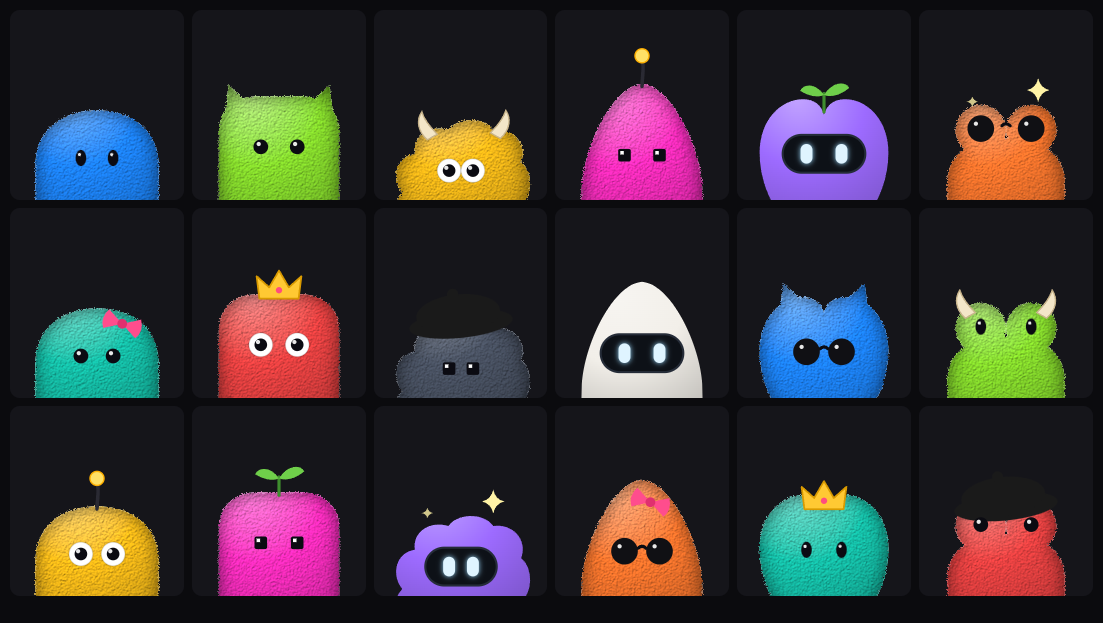
Open the dashboard (▦ on the pal, or dotpals dashboard), go to Settings → Make your own pal, and pick:
- Name: up to 24 characters.
- Body: Round, Boxy, Fluffy, Pointy, Heart or Frog.
- Eyes: Dots, Button, Googly, Pixel, Visor or Shades.
- On top: Nothing, Cat ears, Horns, Antenna, Sprout, Sparkle, Bow, Crown or Beret.
- Color: one of ten swatches, or any color.
- Fluffy: fur, or smooth like vinyl.
Try it thinking, working, needing you and done, then press Use this pal. The floating pal and the notch switch straight away. Surprise me rolls a random one. Your pal is saved in ~/.dotpals/config.json as custom. To use it in your own app, see registerCustom.
The dashboard
Open it with ▦ on the pal, the tray's Dashboard, dotpals dashboard, or http://127.0.0.1:5175/dashboard in any browser. It has five pages.
Overview
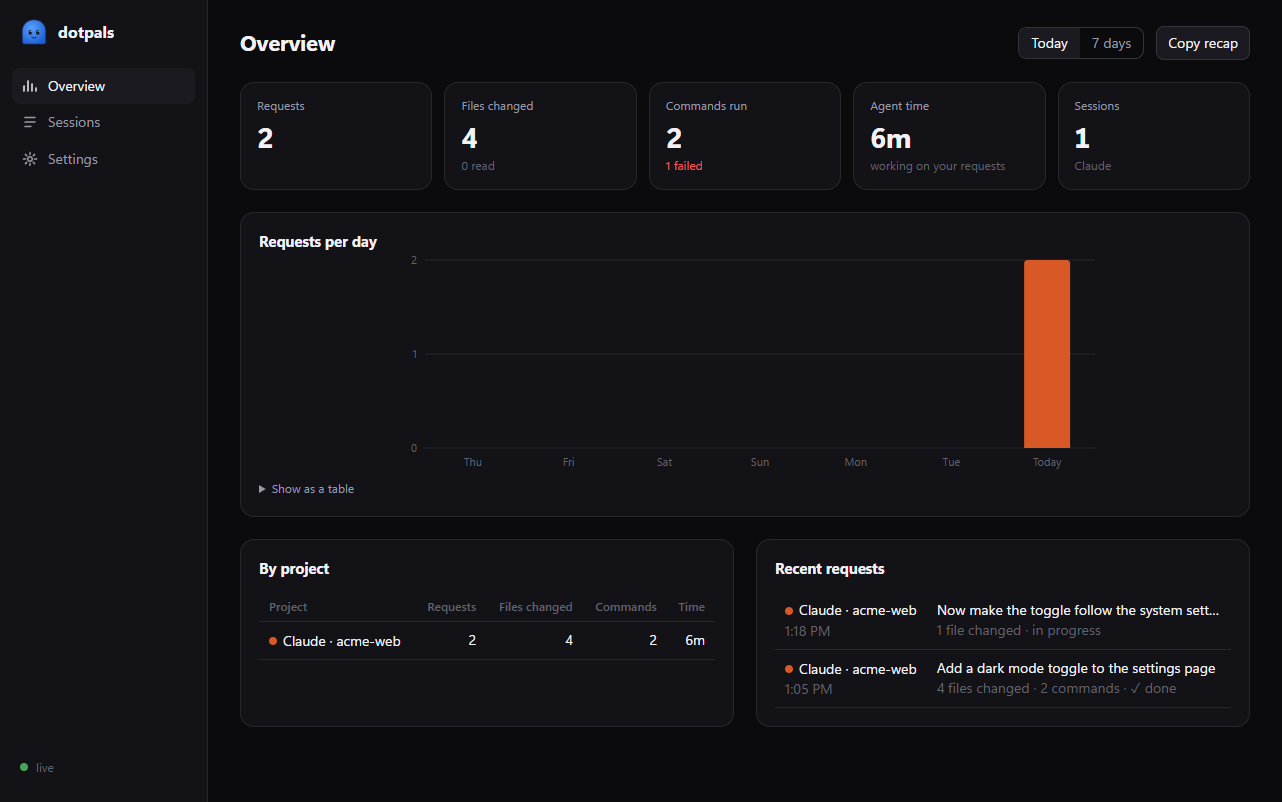
- Today or 7 days, and Copy recap for the whole range as Markdown.
- Tiles: requests, files changed (and read), commands run (and how many failed), agent time, and sessions by agent.
- Sessions over time: one lane per session, colored by agent, with a “now” line. Each request is a bar split into its chapters (thinking, looking around, changes, tests…). Hover a bar for details and click it to open the request. Show as a table lists the same data.
- Requests per day for the last 7 days, stacked by agent.
- By project: requests, files changed, commands and time per project.
- Recent requests, with a ⚠ count when something was flagged. Click one to open it.
Sessions
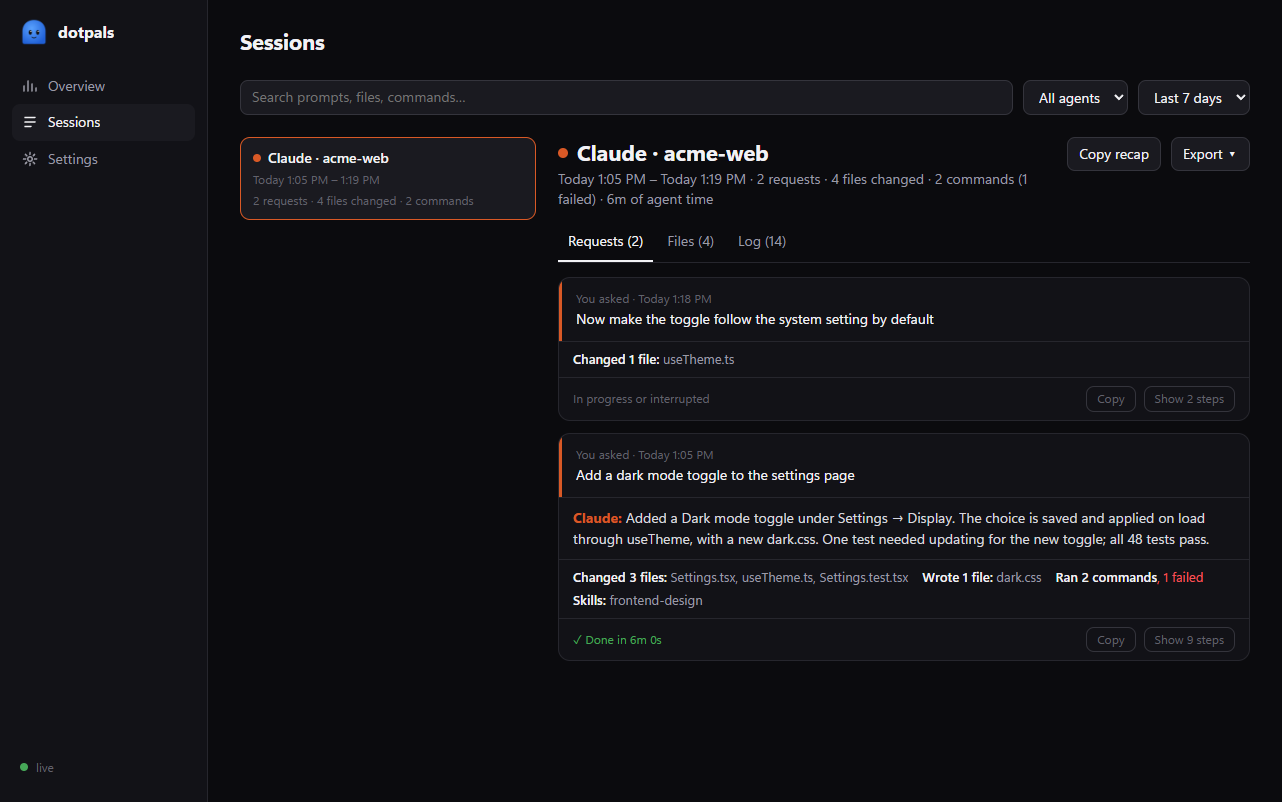
- Search prompts, files, commands and replies; filter by agent; and choose today, the last 7 days or everything. Paste a step's ID (the agent's own tool-call ID, such as
toolu_…; each step in the Log shows its own) to open that session's Log on that step, with its retries. - Each session has three tabs: Requests (each one as a story, with its flags, Copy and Show steps), Files (what happened to each file, and when) and Log (every entry; click one for its details).
- Copy recap copies the session as Markdown. Export downloads it as Markdown and as JSON.
- Every session has its own link,
/dashboard#sessions/<session id>.
Map
What your agents touched, and where they crossed paths, for today or the last 7 days, for all projects or one:
- Where agents crossed paths: files changed by two sessions at around the same time, such as “dashboard.html · Claude (Dot) then Codex (Dot) · 29 min apart”, with a link to each request.
- Files changed: a folder tree of every file changed, with a bar for how often, colored by agent. Files two agents touched get a “2 agents” badge. Click a file to open its latest change.
- Sessions and their helpers: each session with the helper agents it started.
Agents
One card per integration, showing whether the agent is installed, whether it's connected, and when its last event arrived. Cards have Connect and Disconnect, Send a test event, and a switch that turns an agent off without disconnecting it. The Any agent card has copy-paste snippets for curl, PowerShell, Node, Python and the shell. See Agents.
Settings
- Your pal: the character, sounds and notifications.
- Make your own pal (above).
- Approve from the pal, and how long to wait (above).
- Share with your agents (above).
- Two agents, one file: Ask me first, Tell Claude to re-read it, or Off, and how recent a change counts (above).
- History: keep it or not, for 1, 3, 7, 14, 30 or 90 days, and Clear. Clearing removes what dotpals recorded; your agents' own logs aren't touched.
- About: the version, the port and where the settings file is.
Settings are shared by the pal, the notch and the dashboard, and saved in ~/.dotpals/config.json. See Configuration.
Notifications and sounds
Sounds are small synthesized chimes (no audio files):
- a blip when you send a prompt,
- a tick when a file is saved,
- a double ping when the agent needs your OK (or a session's context reaches 90%),
- a rising chime when it's done,
- a low bonk on errors.
Turn them on or off with 🔊 on the pal or in Settings.
Desktop notifications (desktop app only) come when you're probably not looking:
- “Claude needs your OK”: at once if the pal is hidden, otherwise after 20 seconds of waiting.
- “Claude is done”, with your prompt and what changed: when the pal is hidden, or the request took over a minute.
- “Claude's context is 92% full”: when the pal is hidden.
Click a notification to bring back the pal. Turn them off in the tray menu or in Settings.